Manage Assets
Creating an Asset
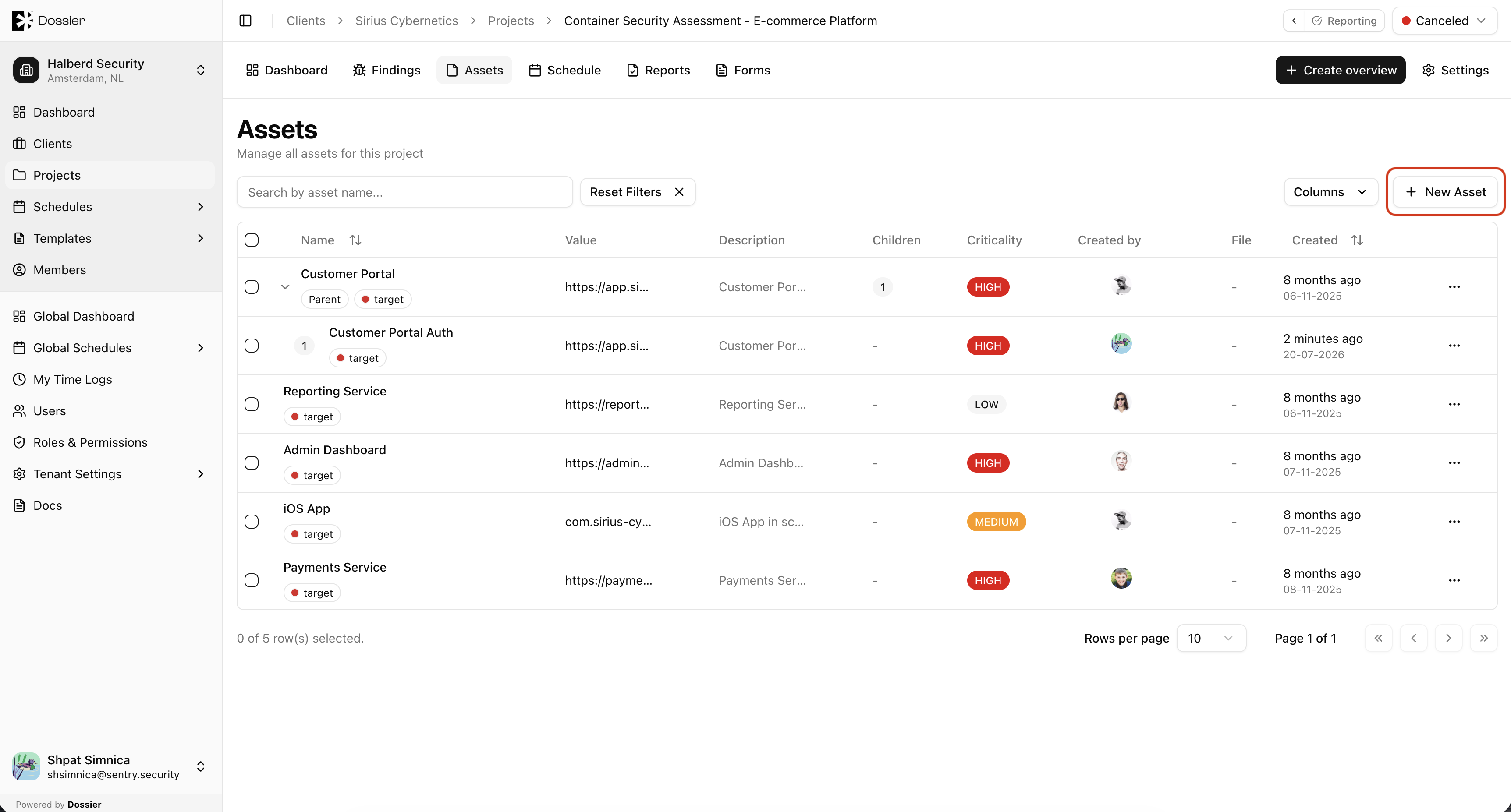
Step 1: Navigate to the Assets tab
Open a project and click Assets in the section navigation. Click New Asset.
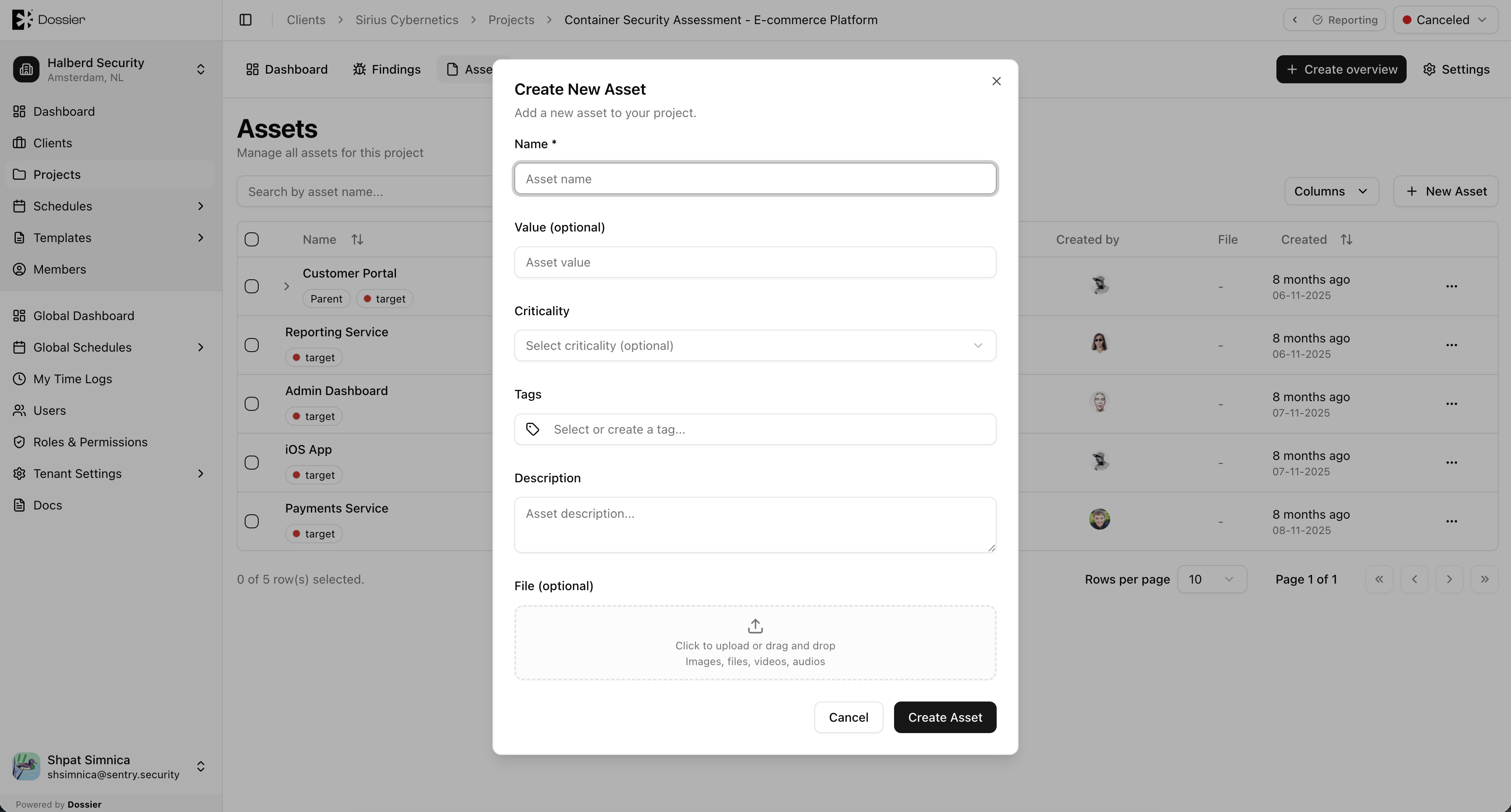
Step 2: Fill in asset details
Enter the asset name, type, criticality, tags, and optional description. You can also upload a file attachment.
Step 3: Click Save
The asset is added to the tree. A success notification confirms creation.
Creating a Child Asset
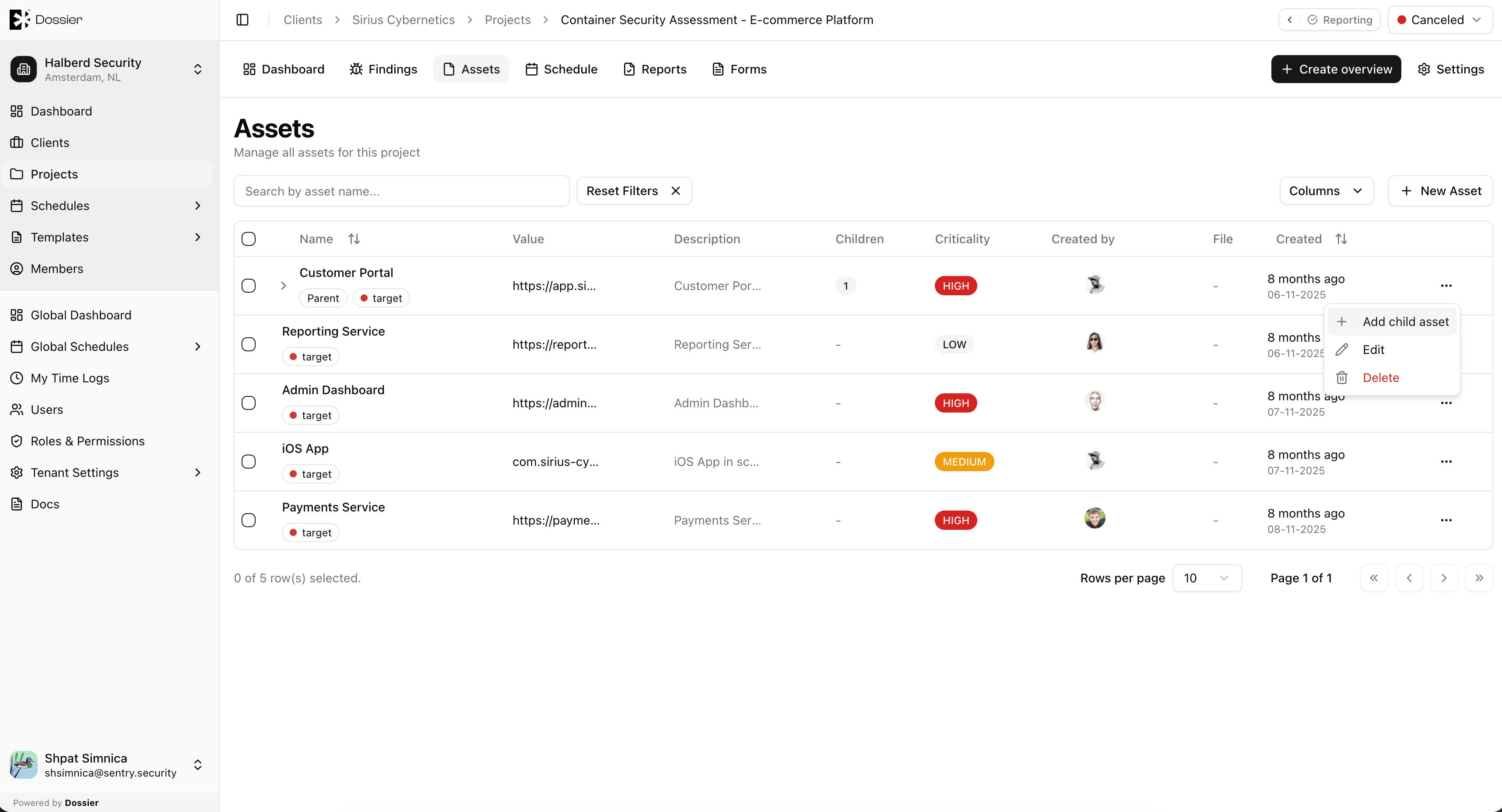
Step 1: Click the add-child action on a parent asset
Use the row action menu on an existing asset to add a child beneath it.
Step 2: Fill in details and save
The child asset appears nested under its parent in the tree.
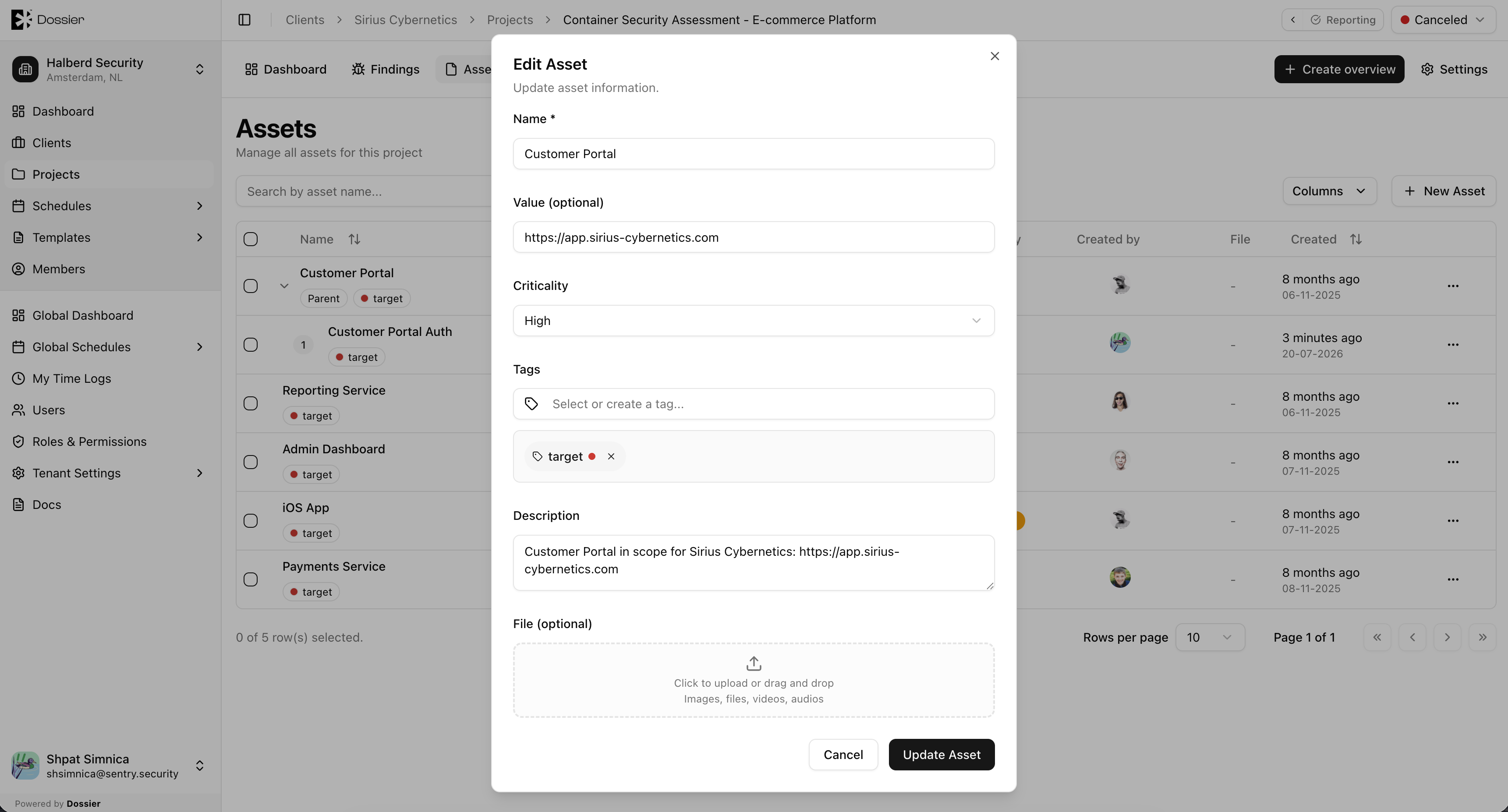
Updating an Asset
Step 1: Click the edit (pencil) icon
Click the pencil icon next to the asset you want to modify.
Step 2: Update fields and save
Modify the name, type, criticality, tags, description, or file attachment. Click Save.
Deleting an Asset
Step 1: Click the delete (trash) icon
Click the trash icon next to the asset.
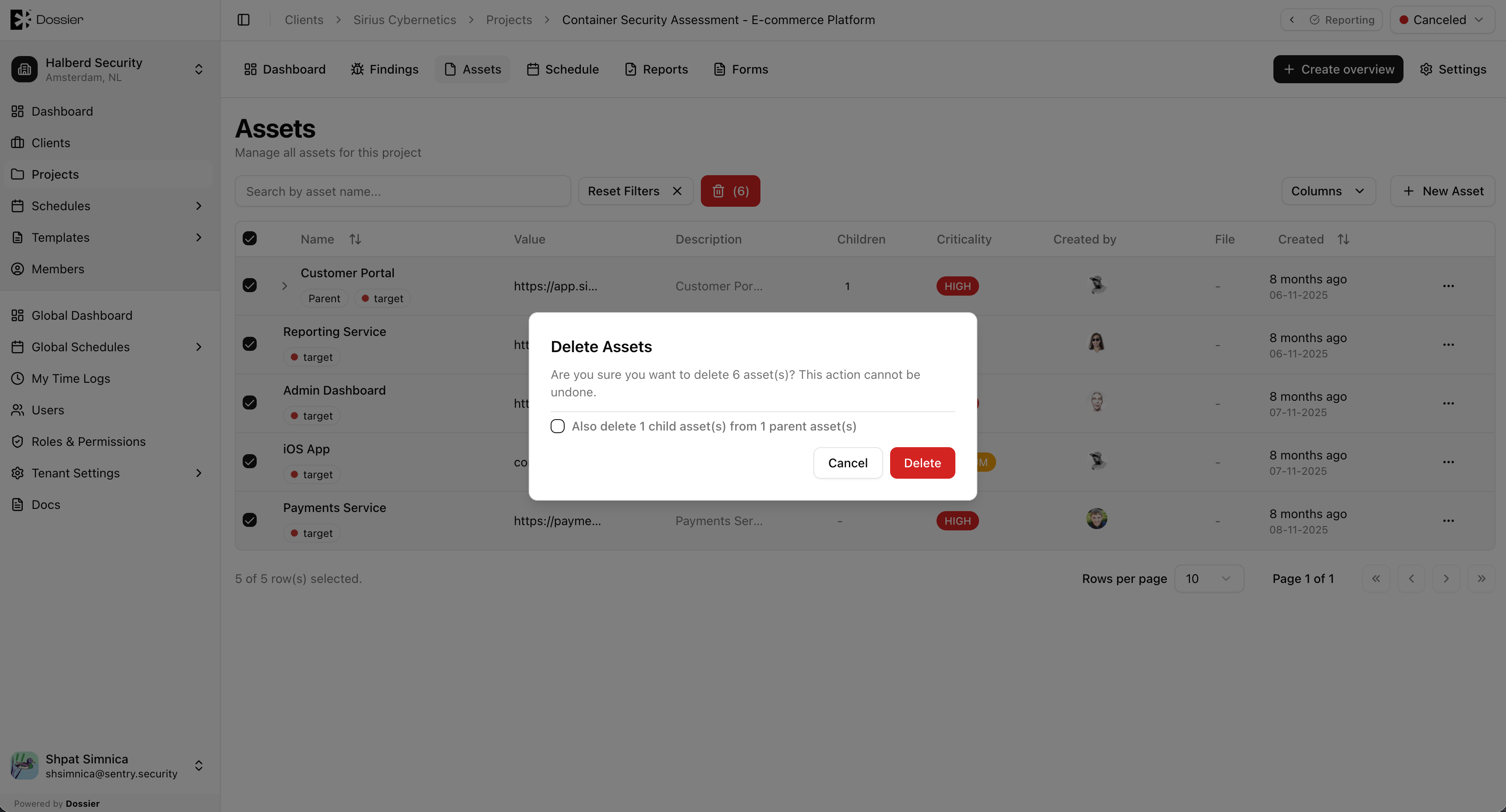
Step 2: Confirm deletion
A confirmation dialog appears. Click Yes to delete or Cancel to keep the asset.
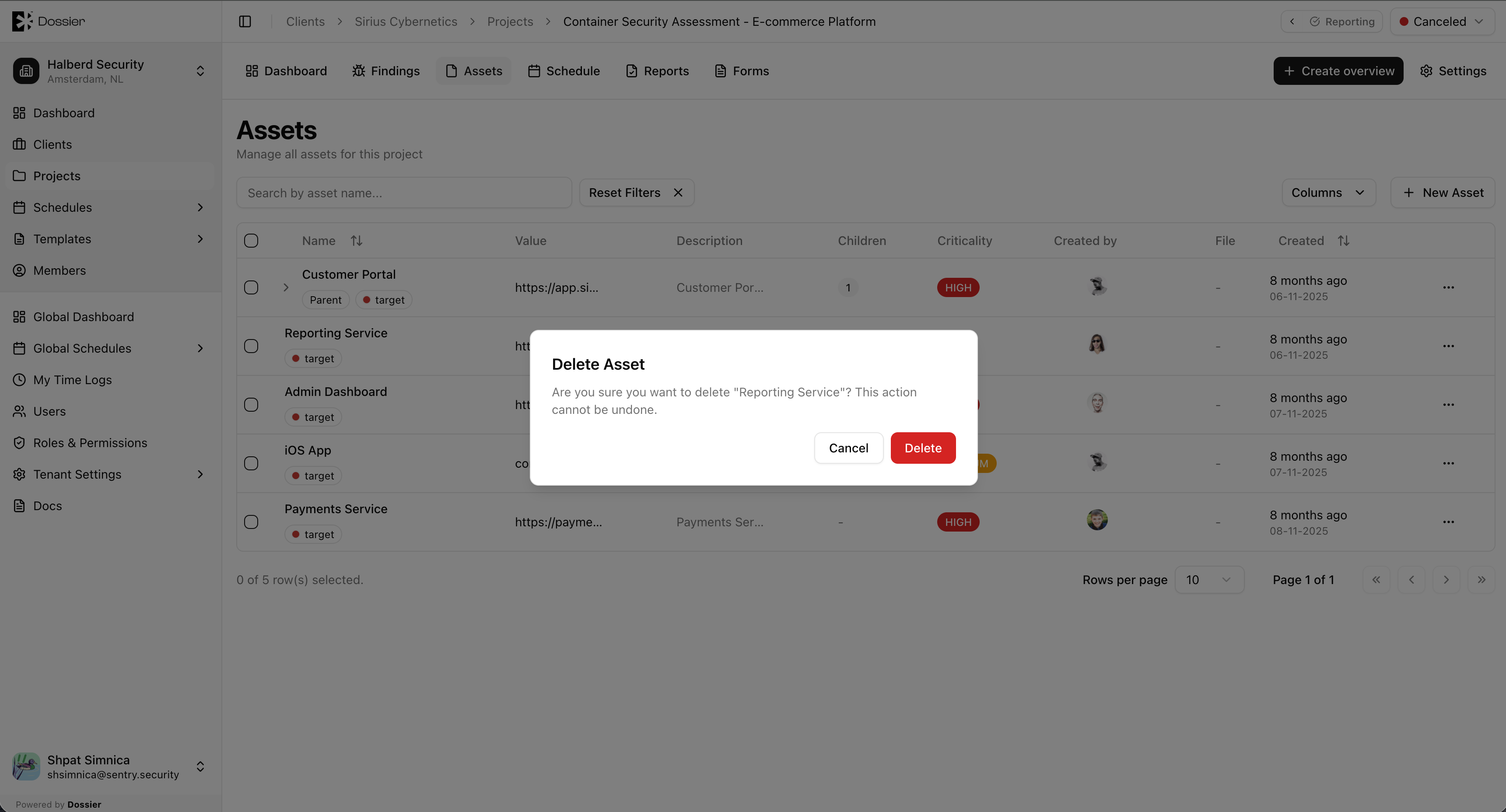
Deleting a parent asset also deletes all its child assets.
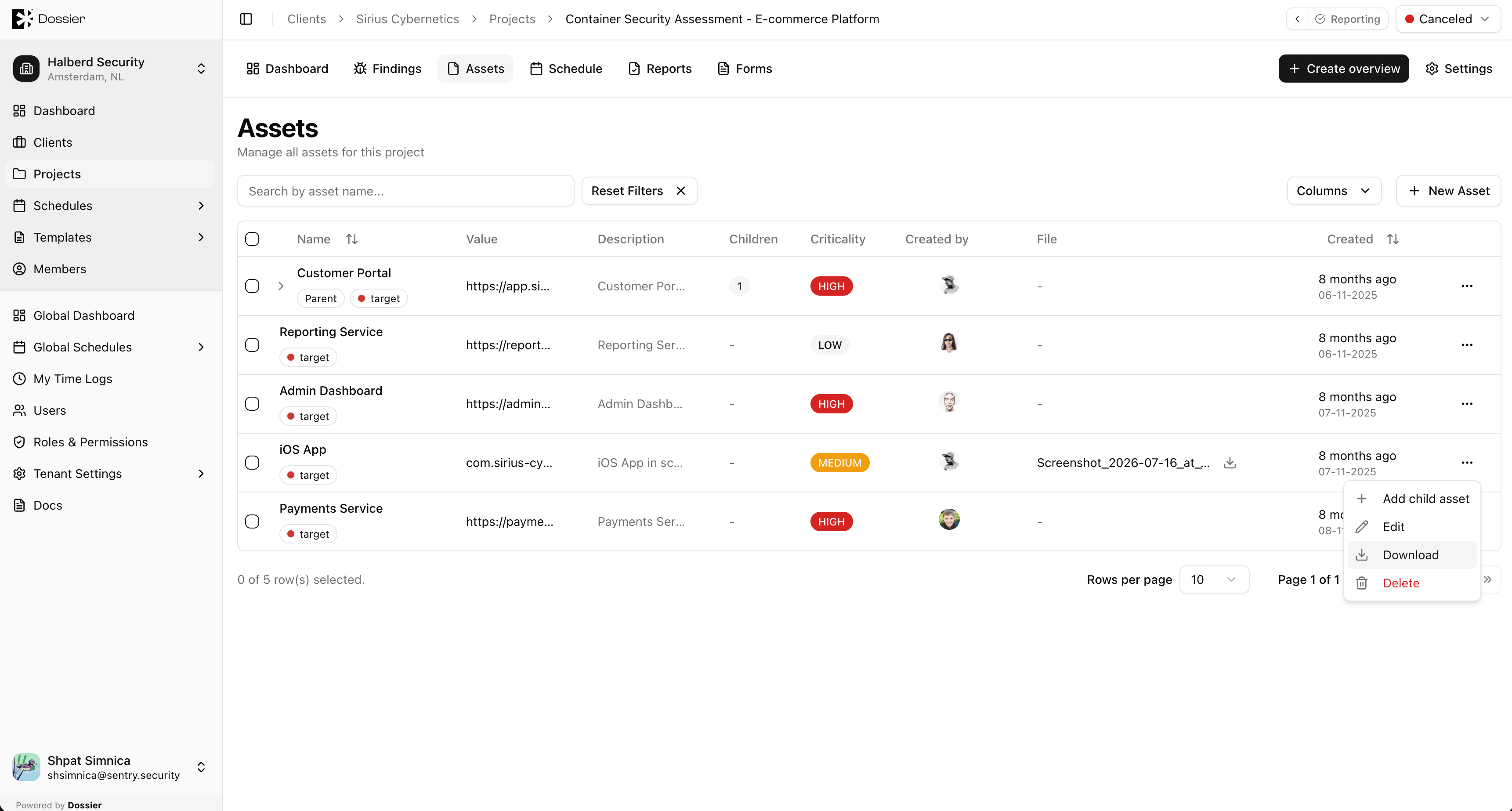
Downloading Attachments
If an asset has a file attached, click the download (arrow-down) button on the asset row to download the file.
Client accounts can create and manage their own assets through the client portal. They cannot modify assets created by team members.
Bulk Operations
Select multiple assets using checkboxes and use the bulk delete action to remove them at once.